
How to install an app on your Commodore 64
It’s time to install an app! But here in 1986, we still call them “programs,” not apps. So, you’ll want to set aside some time to get started installing a program.
Since you have a Commodore 64, there are really only two options for getting new programs this month: COMPUTE!’s Gazette and RUN, and you have to hope that one of those magazines isn’t sold out at the book store. So let’s get going.
Go To The App Book Store
You will need to ask your mom if you can ride your bike to the mall. The dirt mall is closer, but the magazine stand at the dirt mall doesn’t carry any computer magazines, so you’ll need to take a longer ride to the good mall, where the book store actually has computer magazines. It’s a couple of miles to the mall, so usually you would have a friend come with you, but you called their house and nobody picked up, so today it’s a solo trip.
Only one book store carries computer magazines at this mall; the other one only carries magazines about “serious” topics, but they can order back issues of a magazine for you if you want, you just have to wait a few weeks and they’ll call you when it comes in.
The guy at the book store doesn’t know the difference between the different computer magazines, so you can’t ask him if they have the one you want in stock, and he’s probably not going to answer a kid anyway. So you just have to go through all the titles one by one, and hope nobody put a copy of People or Omni in front of it by accident.
There are no ratings, and no reviews of the programs themselves. The closest thing you get is the magazine’s own reviews of hardware — modems, mostly — and a cover that promises you the issue has the thing you want. This month’s cover has a “Buyer’s Guide To Modems” banner across the top.
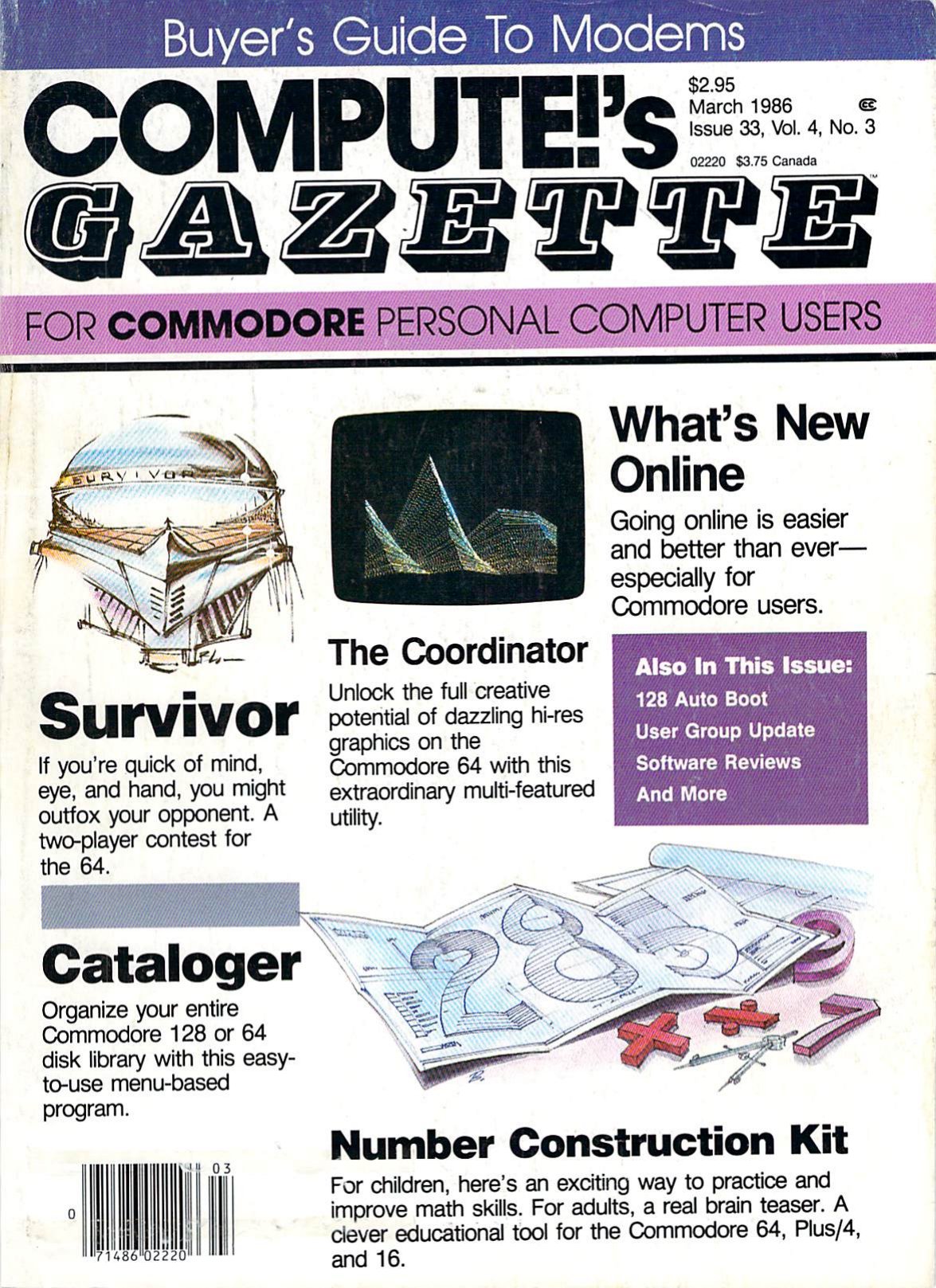
Once you’ve got a copy of COMPUTE!’s Gazette and you’re checking out at the store, you can see that it’s three dollars for the magazine (about nine bucks in 2026 money). If you’re lucky enough to have a five dollar bill, you’ll still have two dollars left over after buying the magazine. That means you’ll have enough money to swing by the record store later and grab a 45 of one of the new singles, like Sheila E.’s “A Love Bizarre,” written by Prince, or The Bangles’ “Manic Monday,” written by Prince, or Prince and the Revolution’s “Kiss,” written by Prince.
Pick Your Program
Now it’s time to race home with the new magazine in hand. You’ll have to wait for everybody to get off of the TV that’s by the computer so you can switch it over to the channel the computer is on and get down to work.
Turn on the switch, and you’re at the blinking blue cursor where it says READY. while the screen is still warming up a bit.
When it comes to installing apps programs, it’s all about options, and this month, we’re spoiled: there are two! They’re both games: Survivor, an arena game where, “if you’re quick of mind, eye, and hand, you might outfox your opponent,” and Shifter. Truly, an embarrassment of riches. Since Survivor is the one on the cover, we’ll go with that one.
(Two or three programs a month is pretty typical. That’s… the app store.)
Type It In
Getting this program running is standard stuff — you just read the article on page 36 that describes the game, and then flip to pages 106 and 107 where there’s the code for a short BASIC loader, and then continue on to pages 107 and 108, where there are 345 rows of densely-packed listings consisting of 9 hexadecimal character pairs, all of which have to be typed in perfectly with zero errors or else your entire game will refuse to run.
A quick sample of the early part of your task looks like this:
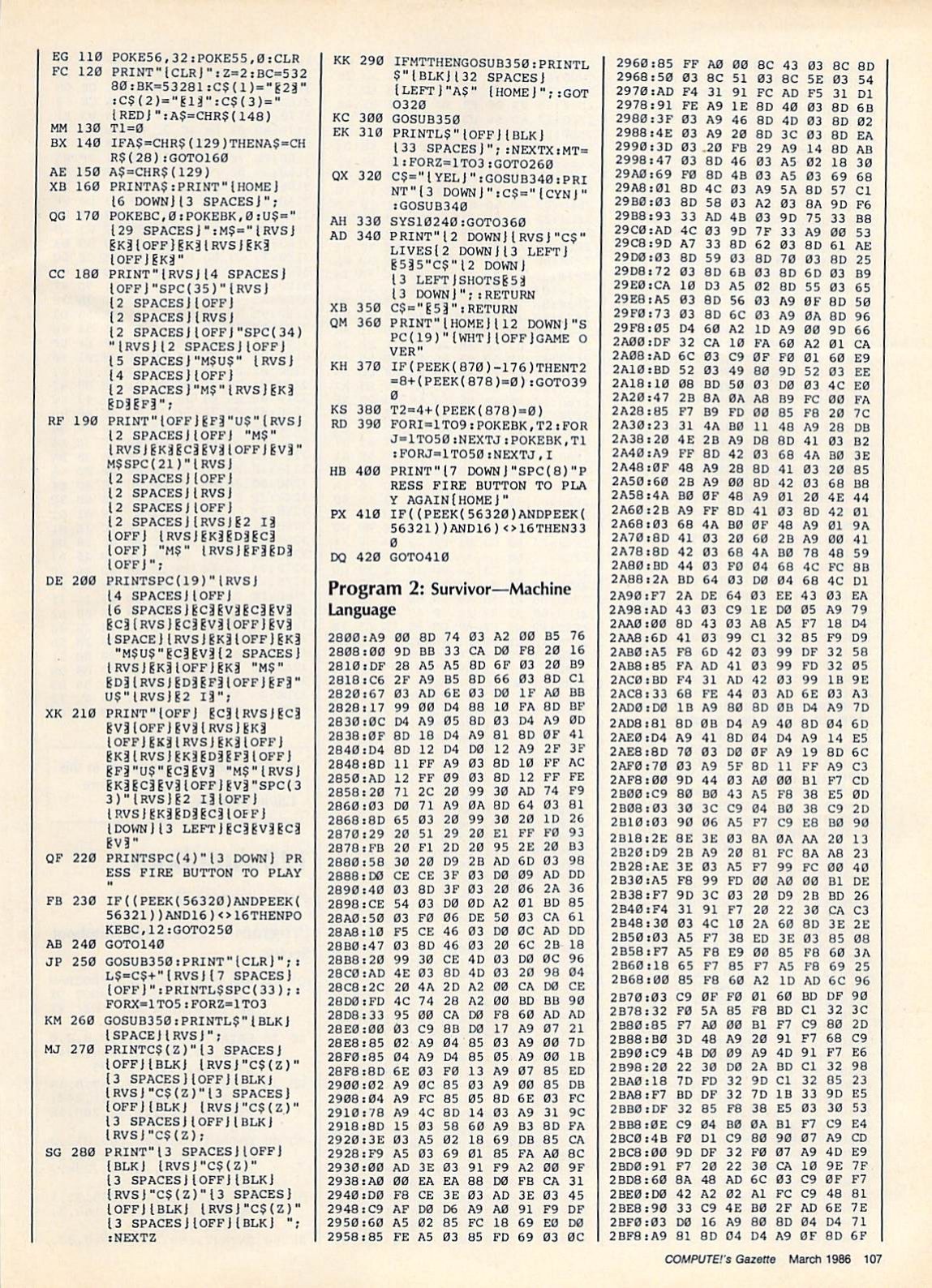
After you’re done typing that page in, you’re about a quarter of the way done, assuming you didn’t make any mistakes.
Wait, what’s that? Where are you supposed to be typing these in? Simply type them into the MLX program where you… wait, what’s that? You don’t have the MLX utility that’s used to type in machine language code for games and programs listed in the magazine?
Oh, don’t worry, you’ll just need to type in the code for that program. There’s an article explaining what MLX is, which you can read really quickly on page 93, and then you’ll find the code for it on page 94. That one’s only 100 lines of code, so it should be easy enough to type in. And of course, you’ll know if you made any mistakes when typing, thanks to the Automatic Proofreader.
Wait, you don’t have the Automatic Proofreader program?
Well, no worries. It’s only another 31 lines of BASIC code, which you can find on page 97. (This one you have to type in perfectly on your own; there’s no proofreader for the proofreader.) Once you do that, you’re all set.
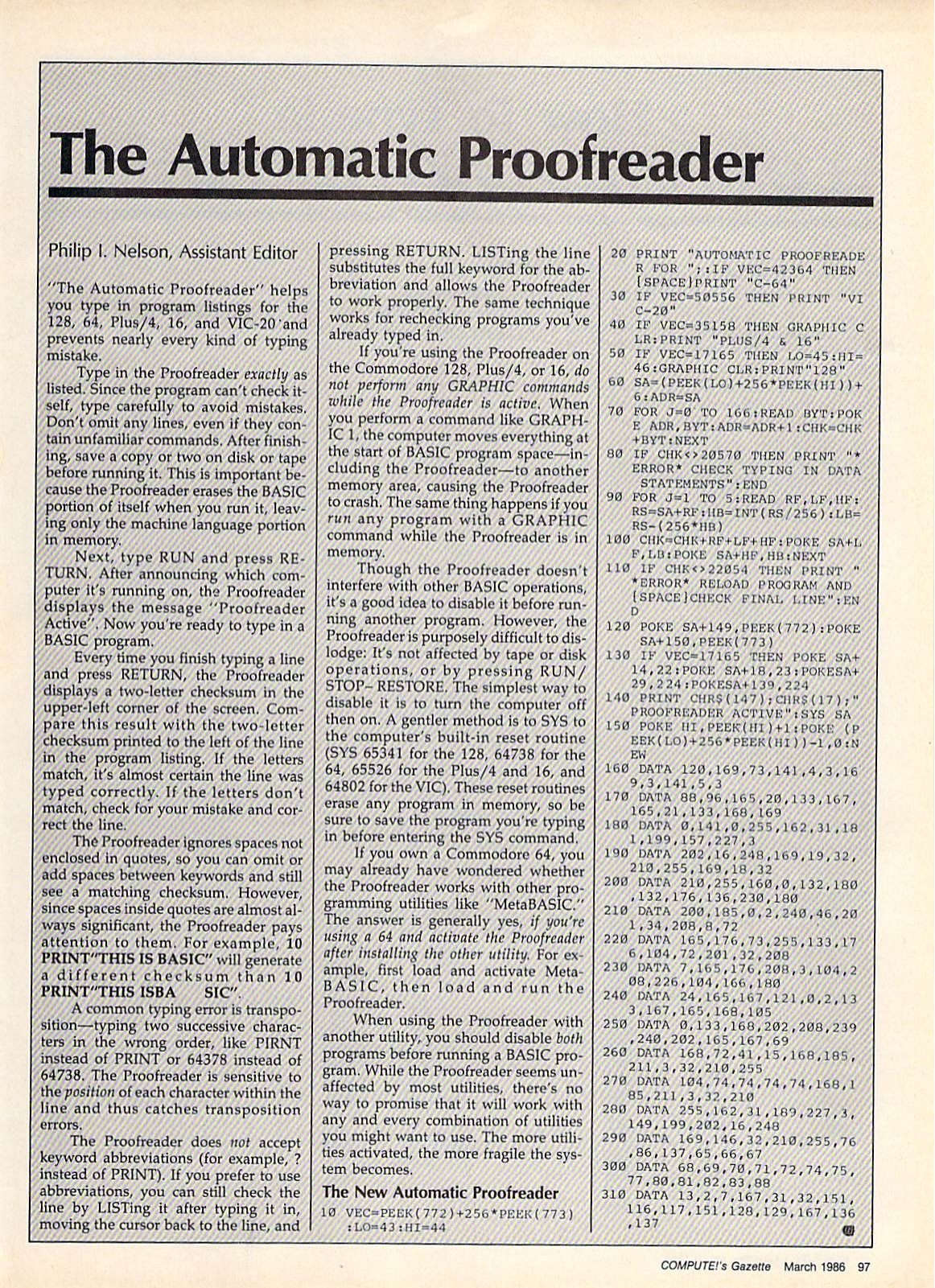
Now, you can just use the program that lets you enter the program to make your program. It should only take about half an hour to type in the code for the Automatic Proofreader, and maybe another hour or two for MLX. Let’s call it two hours total between them.
After that, Survivor is ~30 lines of BASIC plus ~350 lines of hex code, so… maybe six hours? But at least MLX will catch any typos as you go.
Once all of this is complete, be sure to save your work to a floppy disk so you don’t have to type it all in again! If all you have is a cassette deck and you’re saving to tape, it’s going to take probably 10–20 minutes of staring at a blank screen when you save, so set aside some time for that.
In total, it should only take you about 8 hours to have Survivor ready to play, plus however long it takes you to get to the mall, buy a magazine, and come back.
Ready To Play
(Click or tap to get started.)
[This is Survivor by Kevin Mykytyn and Mark Tuttle, from COMPUTE!’s Gazette, March 1986, running in the VICE emulator. The game loads and runs on its own, which takes a few seconds.]
Controls: the yellow player uses W/A/S/D to move and F to fire; the cyan player uses the arrow keys to move and Enter to fire.
Next Steps
The Download
Someday, rather than typing all of this in, you might be able to use your 300 baud modem to download already-created versions of these games and tools. You could dial a local BBS, if there’s one nearby. If you’re unlucky, the only one you can reach is a long-distance call, and you’ll be paying by the minute for as long as you’re connected. Or you could look for a local dial-up number for the Quantum Link online service (which will eventually evolve into America Online!).
Transfer times can range from tens of minutes to hours, and of course during those calls, you are tying up what’s usually the sole voice phone line for the household. Anyone picking up a phone handset in the house threatens to knock your connection offline, forcing you to start the whole process all over again.
Customization
Now that you’ve enjoyed your game of Survivor, there are some fun ways to customize your little computer and give it a personal touch.
Just for context, here’s a to-scale comparison of the screen resolution of your Commodore 64 to the dimensions of an iPhone Duo’s unfolded screen.
You can’t change the wallpaper on your Commodore 64, but you can easily change the background colors for both the center area of the screen and the border. All you have to do is manually assign the proper numeric color code to the correct memory register corresponding to the values of each of those settings.
Memory address 53281 will set the background color for the primary content area, and a color code of 1 sets a nice readable white background, so it only takes a simple POKE 53281,1 command at the prompt, and you’re all set. Similarly, POKE 53280,4 will make the border of the screen a nice bright purple color, and of course there are a full complement of 16 colors to choose from.
Naturally, none of this customization is stored anywhere permanent, and it will all be lost if you turn off your computer or run a program.
READY.
I hope you’ve enjoyed this brief overview of how to get one game running on your Commodore 64, and perhaps gained a little appreciation for how things have gotten a bit simpler over the years.
Also, I will be entertaining a motion to return to calling our software “programs” instead of apps once more. Perhaps we could use the term to distinguish the software that’s created by humans actually typing things in, as opposed to the kind that’s merely generated by machines?